 The Average Learner
The following guide assumes that you are using at least iPadOS26, if not, there’s no way to do it.
Step-by-Step Instruction
-
Open your File app on iPad
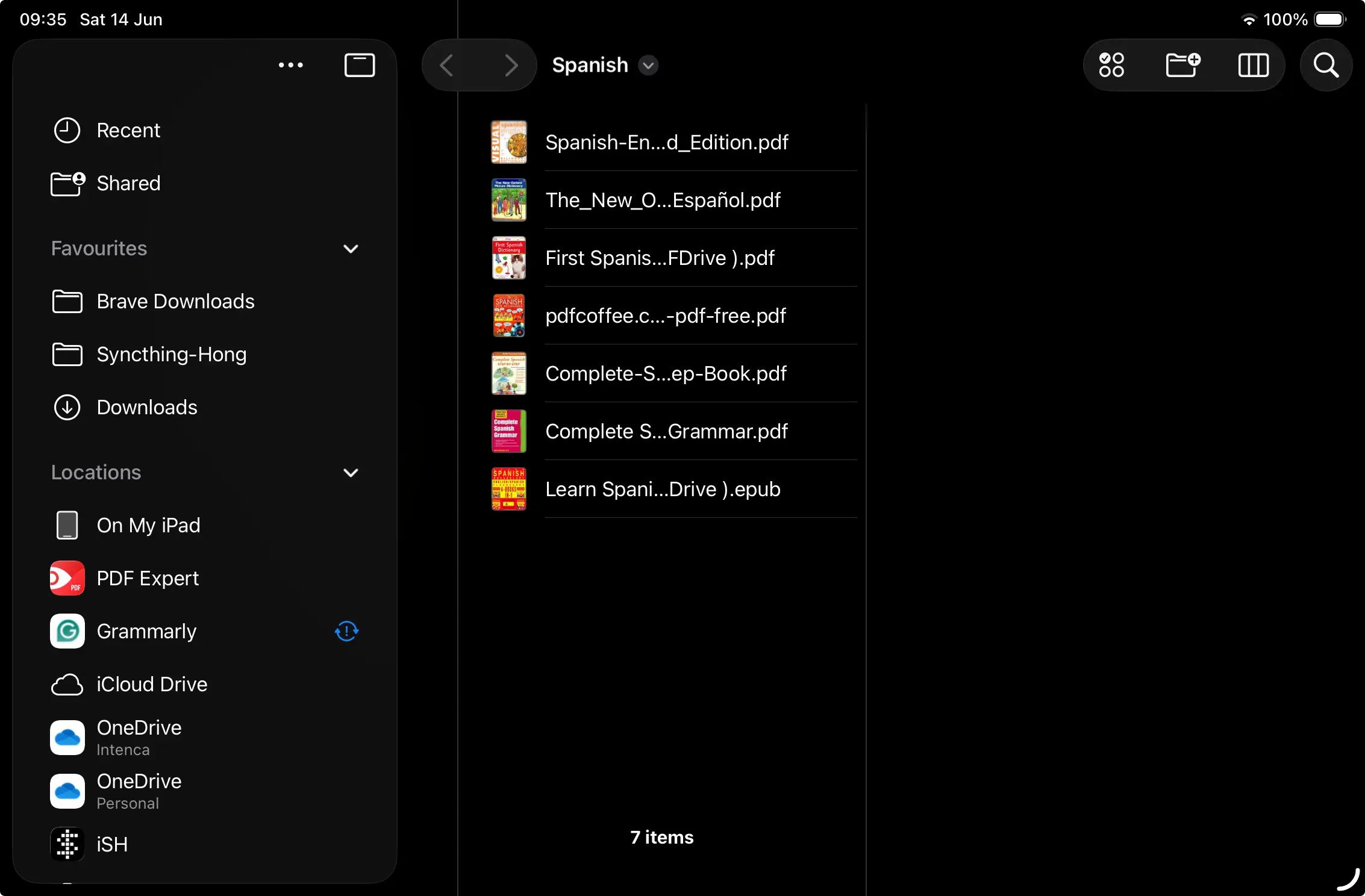
-
Press and hold on the file you want to change the default app with. Then, press Get Info.
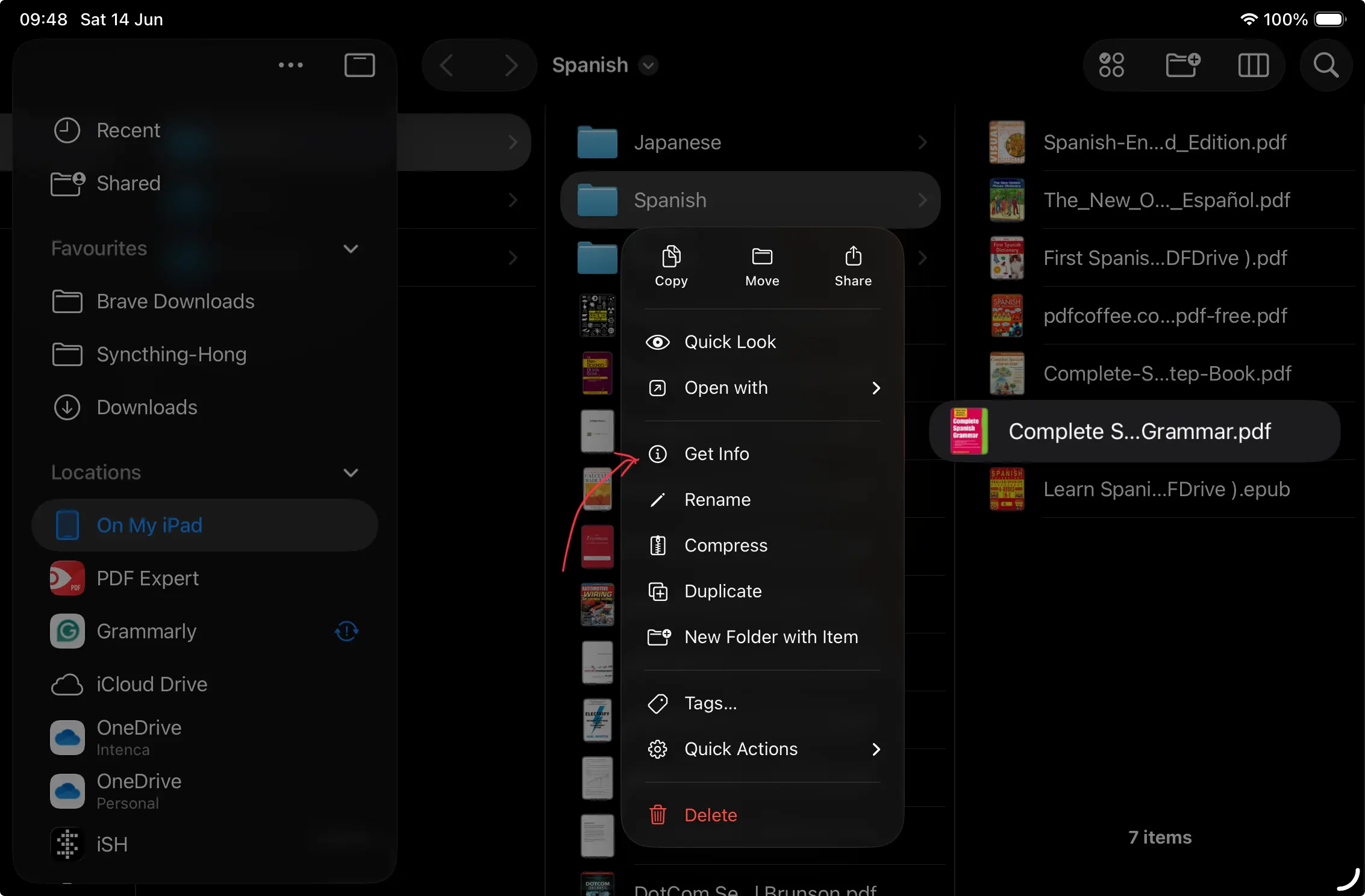
-
Press on the Always Open With column.
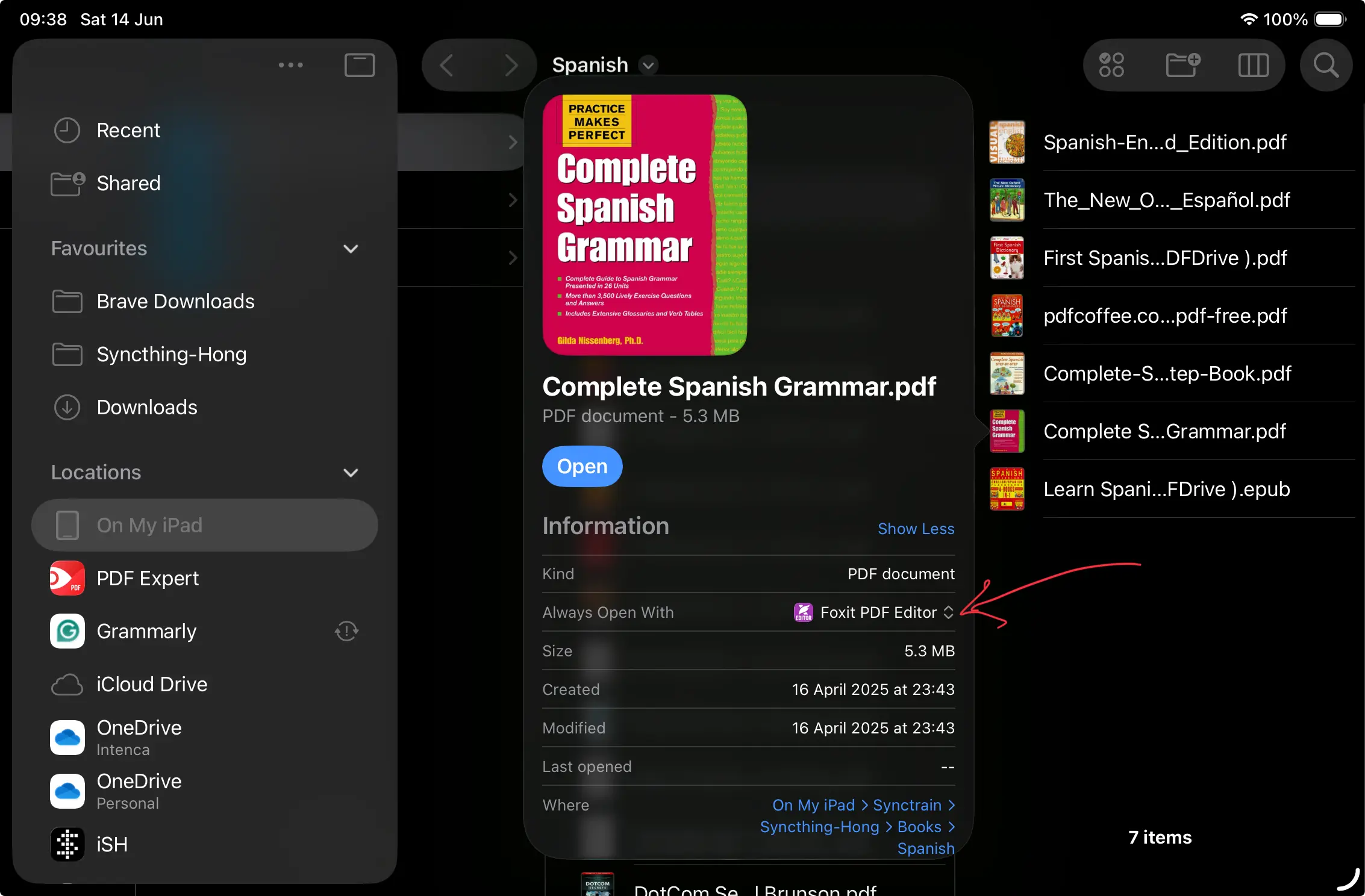
-
Select the default app for this kind of files.
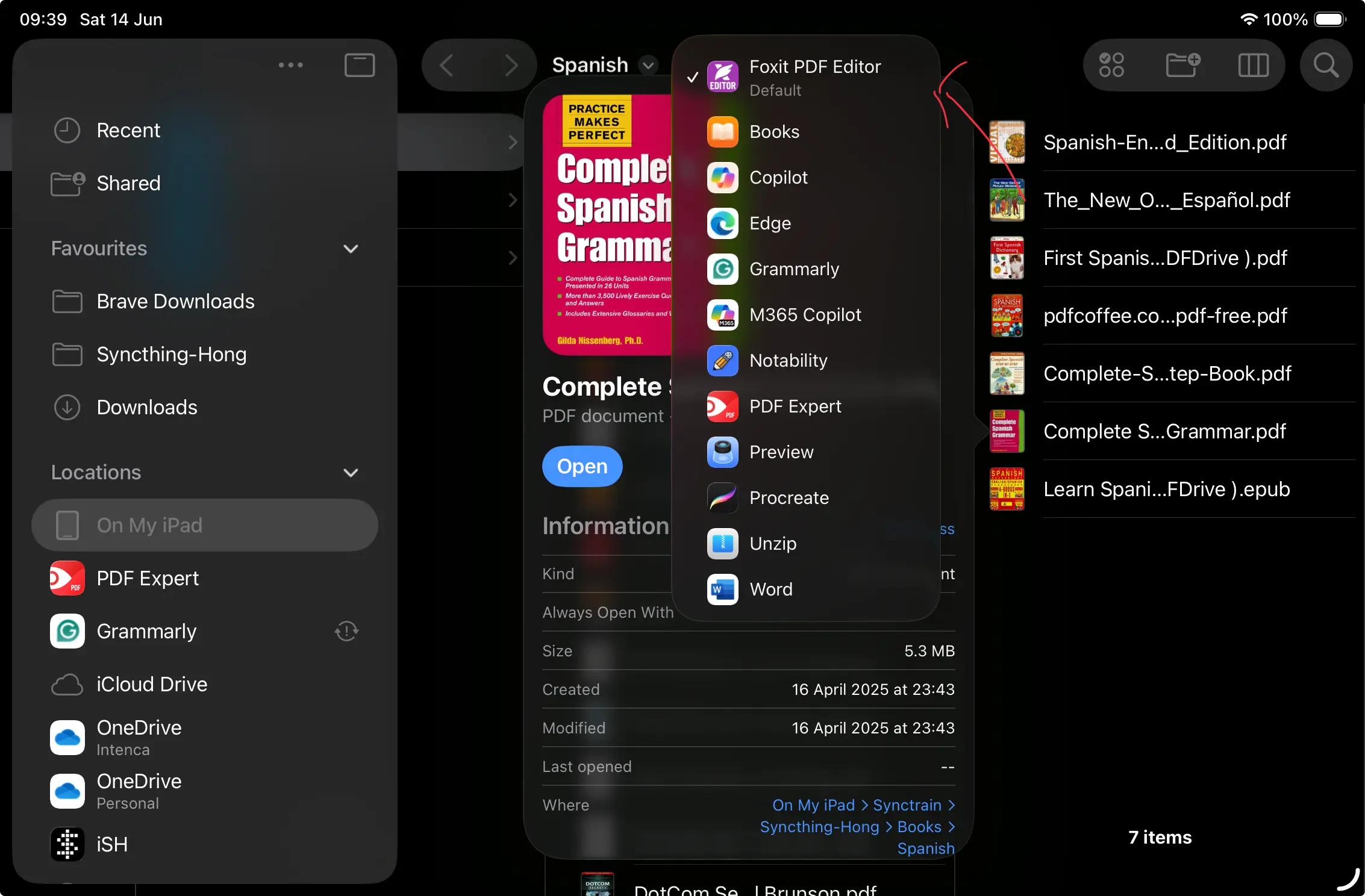
Usage
Adding Folder to The Dock For Quick Access
By long tap and hold on a folder in the File app, you can “Add To” > “Dock”. The folder will then show on the dock like the following picture.
Opening PDF Books in Third-Party App from The Dock
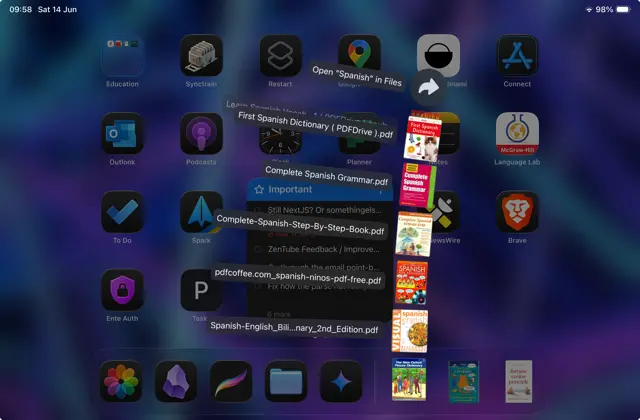
This is how I leverage the new “Always Open With” and file folder system. I add a folder full of PDF books to the dock so I can quickly access them without going to an app (in my case, Foxit reader), then open a file from the app. Or, open up the File app to look for the file to open it. This is much better than what it used to be.
I also added a “Download” folder. Where it acts like macOS download folder for me. So, it is more convenient for me to manage my downloaded stuff without navigating in the File apps every time.
What are your use cases?