 The Average Learner
The links in this article will open the mentioned community plugin in Obsidian directly.
What to Use Obsidian For
Most people are using Obsidian for writing notes for schools and personal studies. That is because it is good at building your knowledge base with decent notes linking and note search. And, above all else, it provides excellent writing experience.
Personally, I use it for journaling, note taking, and even acting as CMS for this blog. (I write my blog posts in Obsidian, including this article.)
In this article, I will share some community plugins that I found useful.
Journal
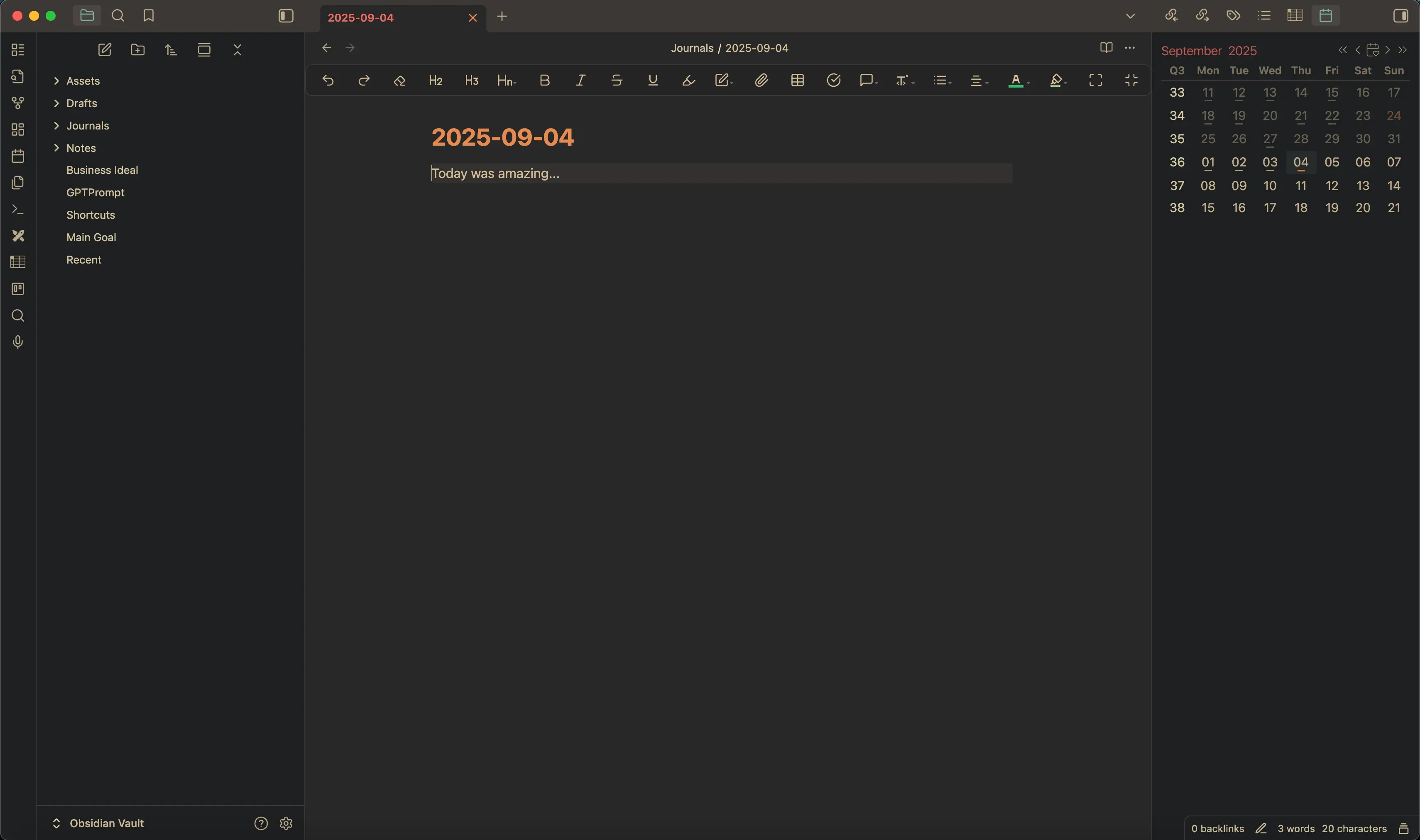
For journaling purpose, I use Daily Notes Calendar.
What I like about it
It is easy to use. It has a calendar view on the right as you can see. You can simply click on a date, it will then create a journal note with that date as the file name.
So, I can back date on days I skipped.
You will need to set the settings correctly to make it put the new journals inside a certain folder path you want. As well as toggling weekly journal on and off, etc.
Omnisearch
Omnisearch is a better search engine for your notes within the vault.
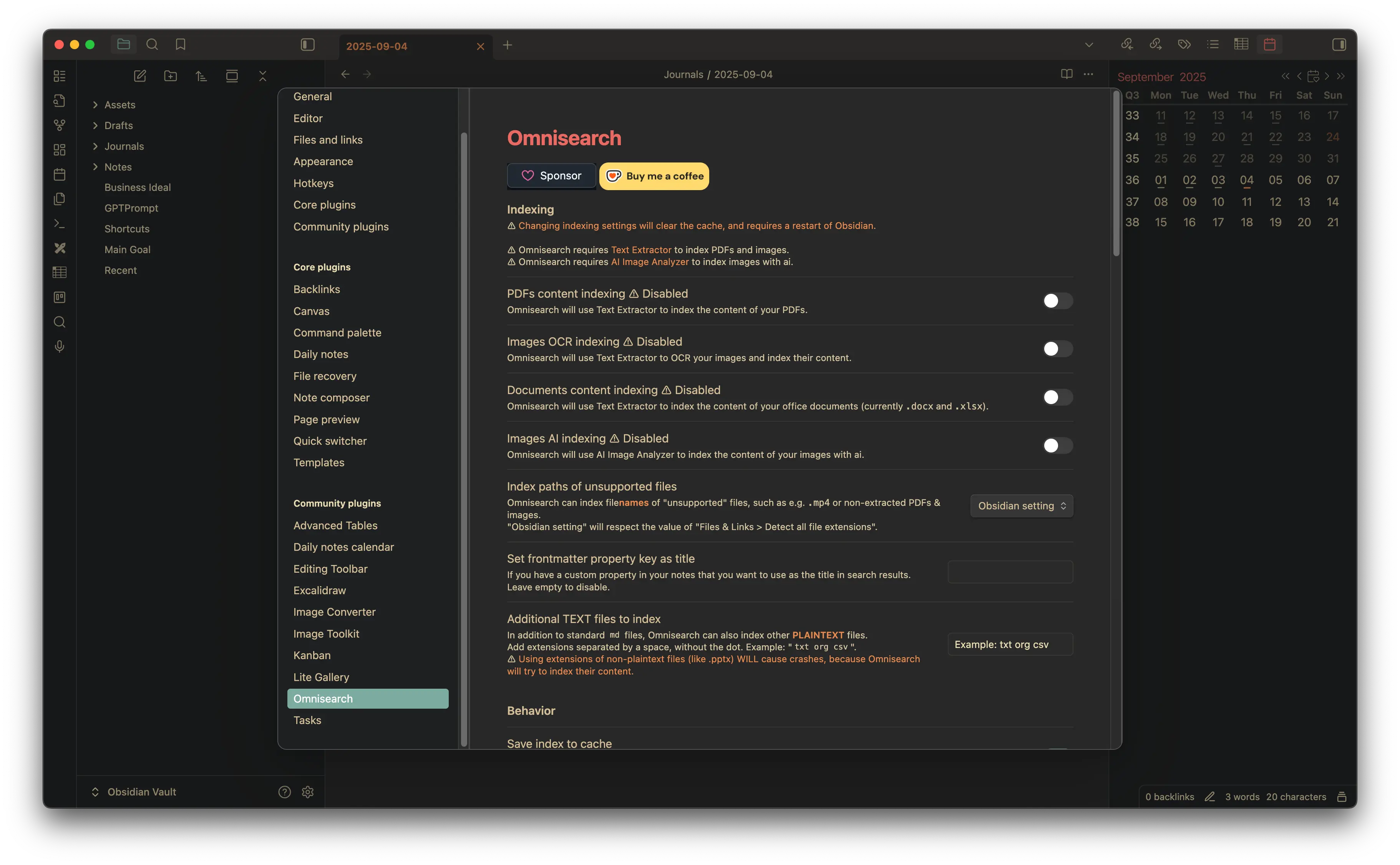 As you can see, you can even search the text within your images, PDF, and documents.
What I like about it
It shows more details comparing to the built-in search, such as file name and titles. I have yet to explore the OCR and documents search function because I have yet to put in my PDFs and docs into Obsidian. As I still find reading PDFs in other apps offer a better reading and editing experience. But, I might in the future.
Image Converter
This plugin is excellent for reducing image file size, display size, converting file format, and a lot more.
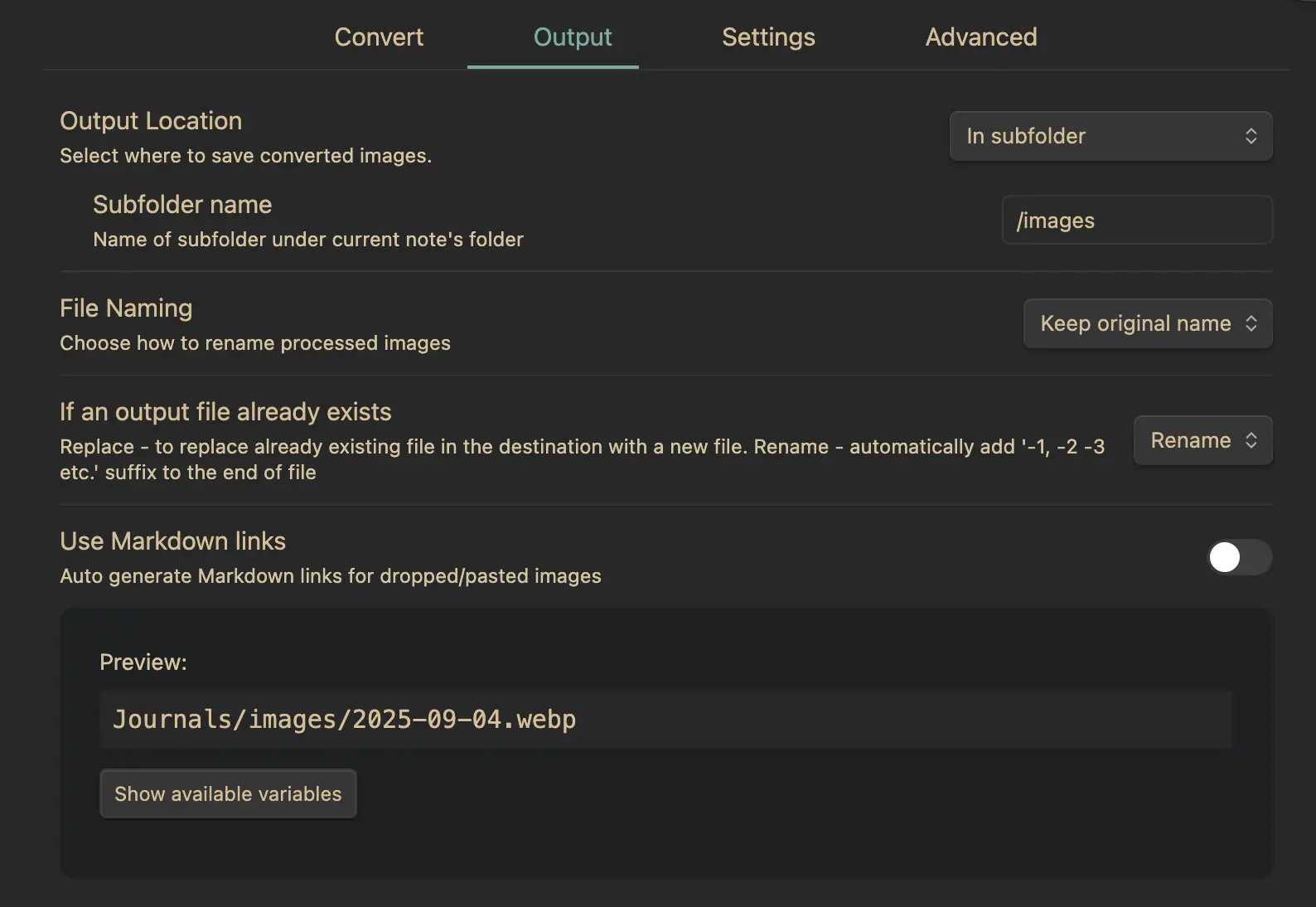
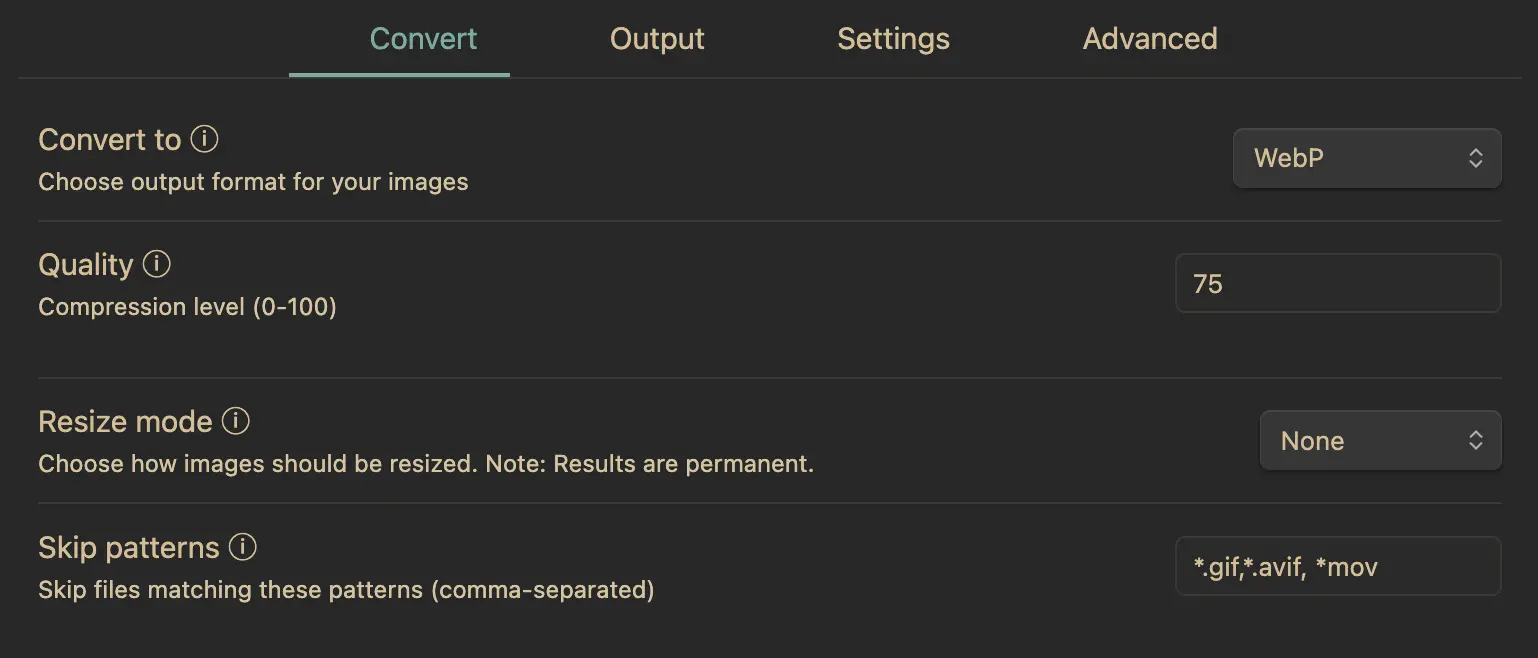
Below is my current setting.
What I like about it
Does what it saids and easy to use. When dragging an image to a note, it automatically covert the image to WebP without deleting or adding the original.
How I use it
I make all images convert to WebP format - arguably the smallest size yet highest quality image format. You can fine tune it in the setting.
I choose to place the images I added to a note to an /images folder which is under the same directory. E.g. Science/images. For my notes inside Science, adding an image to the note will create an images folder (if not existed yet) inside Science folder, and the same goes to other notes at other locations.
Last Words
There are a lot of more interesting and useful plugins in Obsidian that I haven’t go through yet. But for now, these are the ones that I use daily. If you like the theme that I am using, it is called Material Gruvbox.
I love Obsidian, and there will be more articles about it coming up.